Avalonia for mobile
Avalonia draws every control itself on iOS and Android, so the phone build comes out of the same project, and the same XAML, as the desktop one.
Platform support
iOS and Android out of the project you already ship.
Mobile is a target on the same Avalonia project rather than a separate product. The views, the view models, the styles and the custom controls are the ones your desktop build already uses.
Windowing
Native iOS and Android integration
One Avalonia view hosted by each platform, not a web view.
Rendering
Skia, on the device GPU
Every control is drawn by Avalonia, so it matches your desktop build.
Architectures
ARM64, ARM32 and x64
iOS is ARM64; Android adds ARM32 and x64 for emulators.
Runtime
.NET 10.0
Higher than desktop because the .NET 10 SDK no longer carries the .NET 8 mobile workloads. OS versions follow the .NET MAUI support lifecycle.
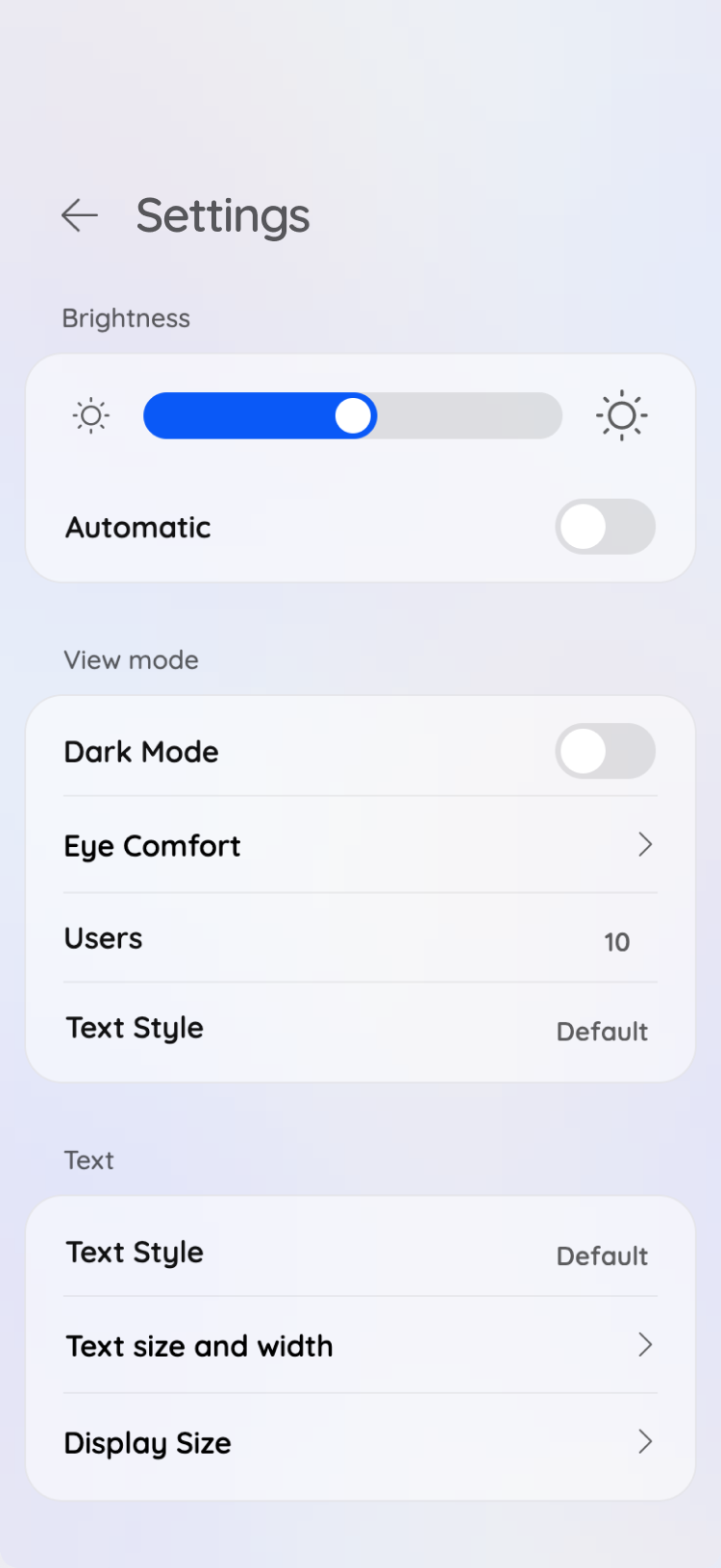
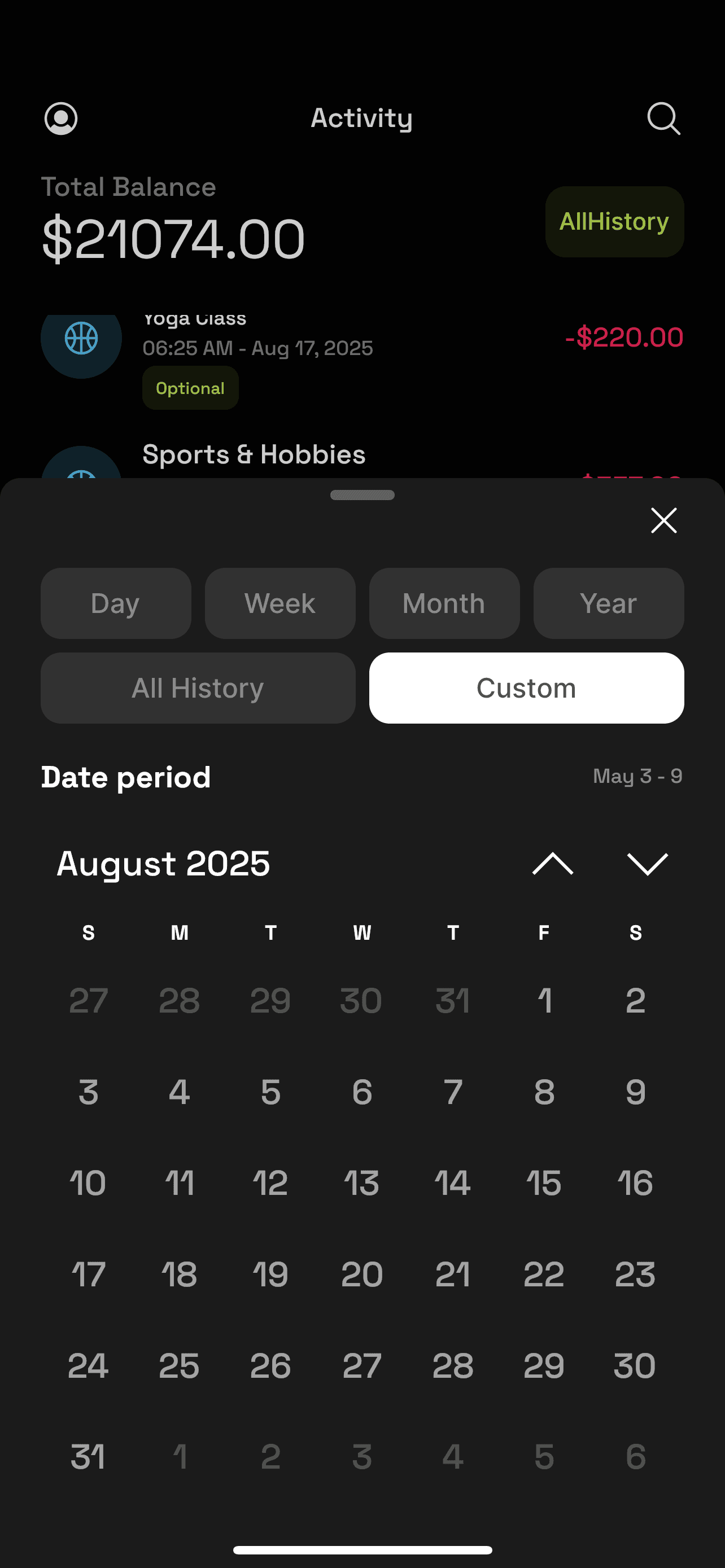
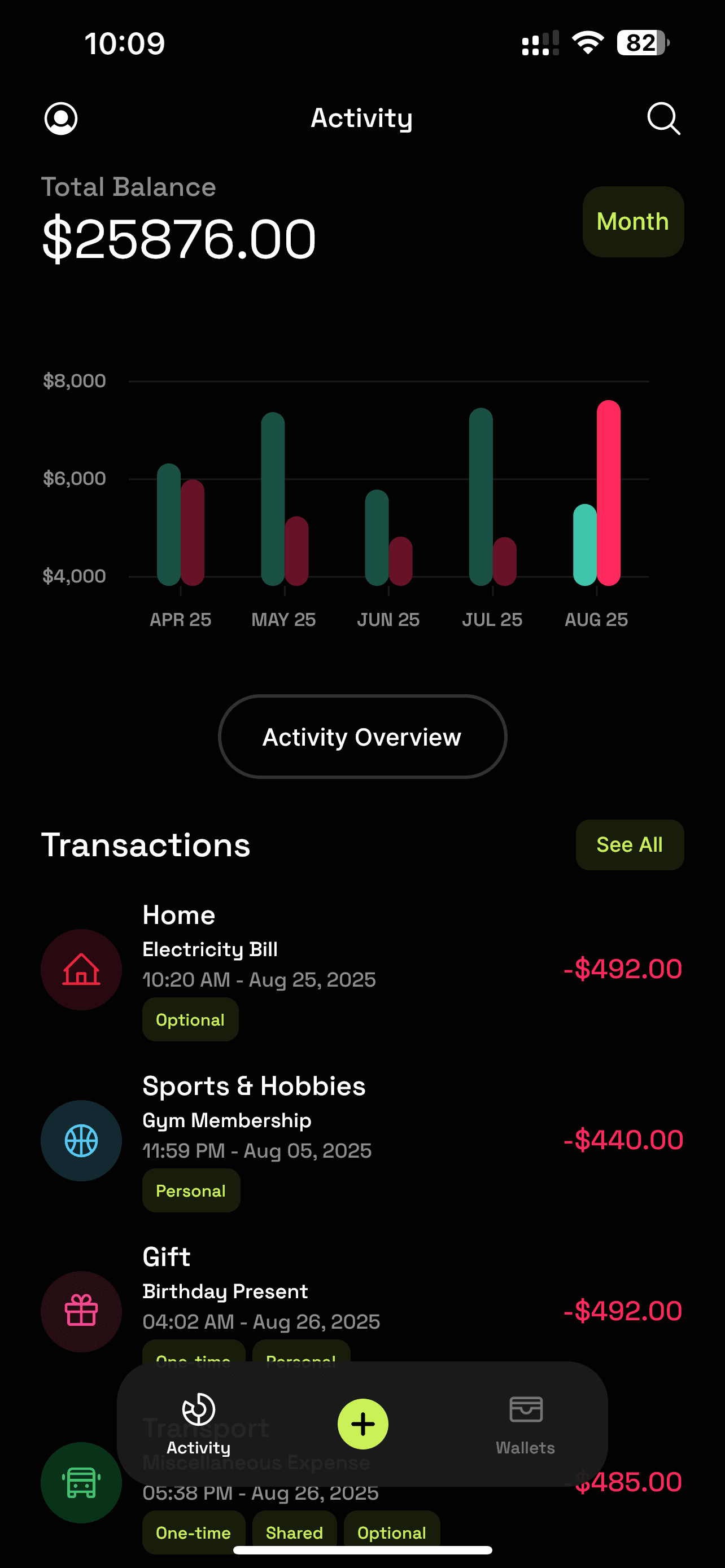
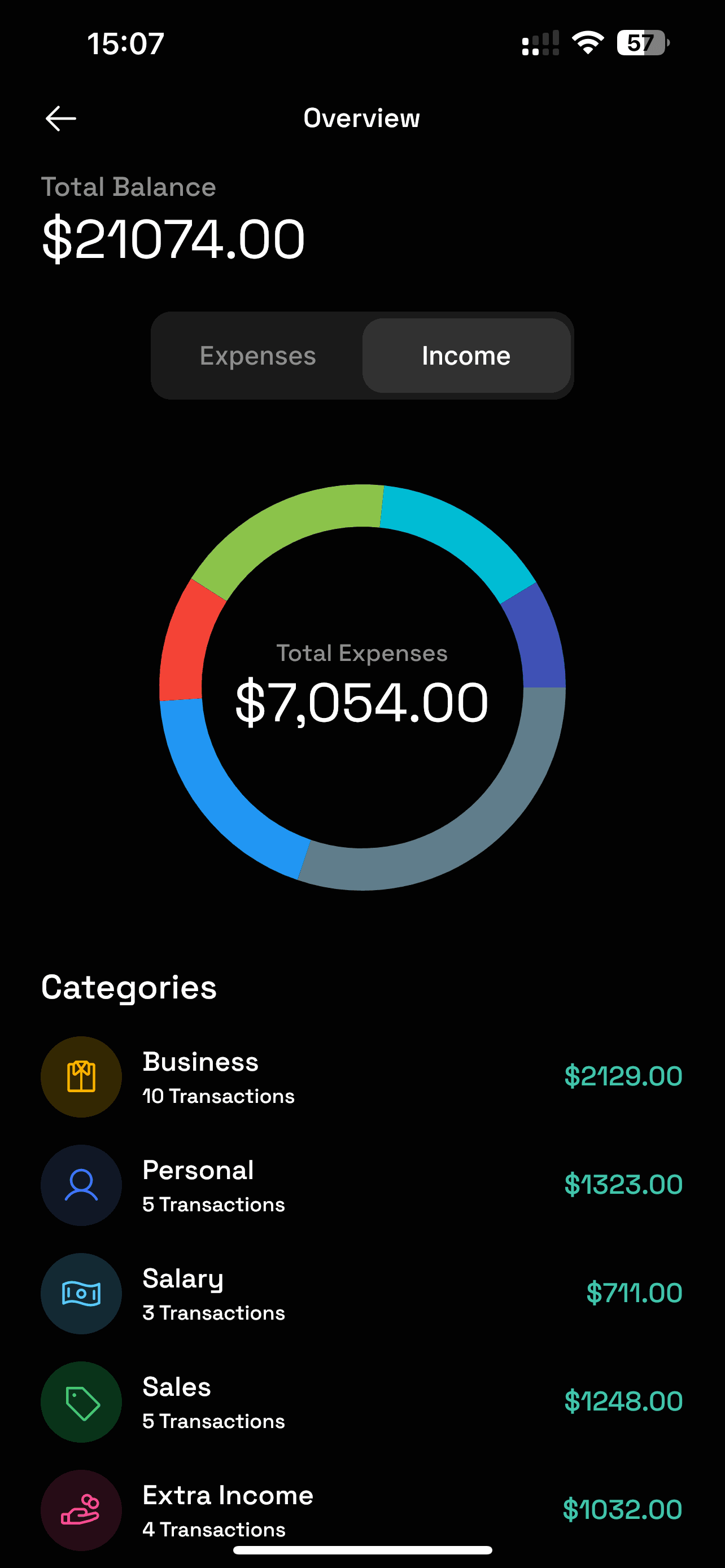
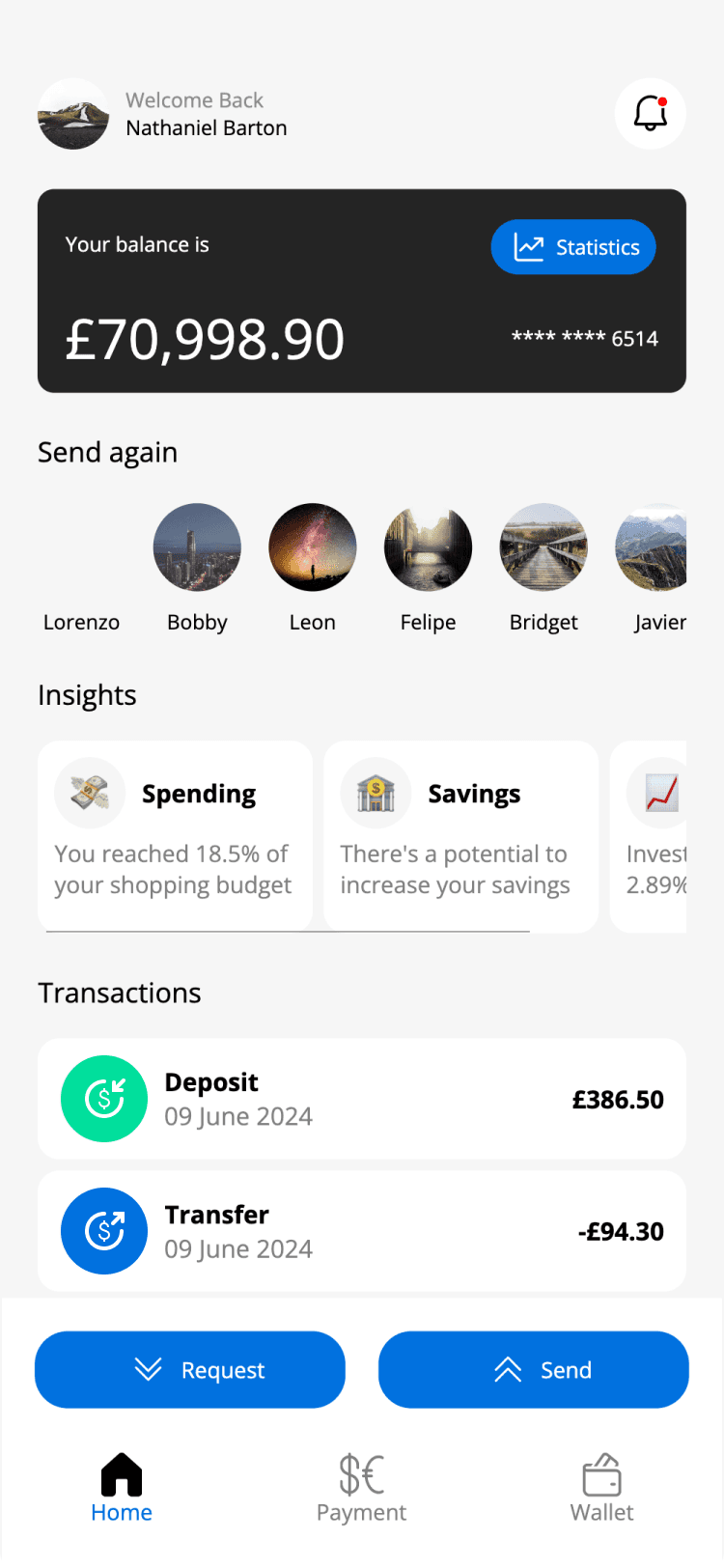
Drawn by Avalonia
Every pixel here is ours. None of it is a native widget.
These are Avalonia views running on a phone. The controls aren’t UIKit or Android widgets with a .NET wrapper around them, which is why the same XAML produces the same result on both operating systems and on the desktop.
How it works
Avalonia doesn’t wrap the native toolkits. It replaces them.
Both paths below start with your code and end at the same GPU, and they differ on exactly one row.
Your code
The framework
What draws a button
The device
Wrapping a native toolkit
Two widget sets to reconcile on every release, and a shim whose job is hiding the differences between them.
Avalonia
One widget set, drawn by us, identical on both operating systems and on the desktop.
Design
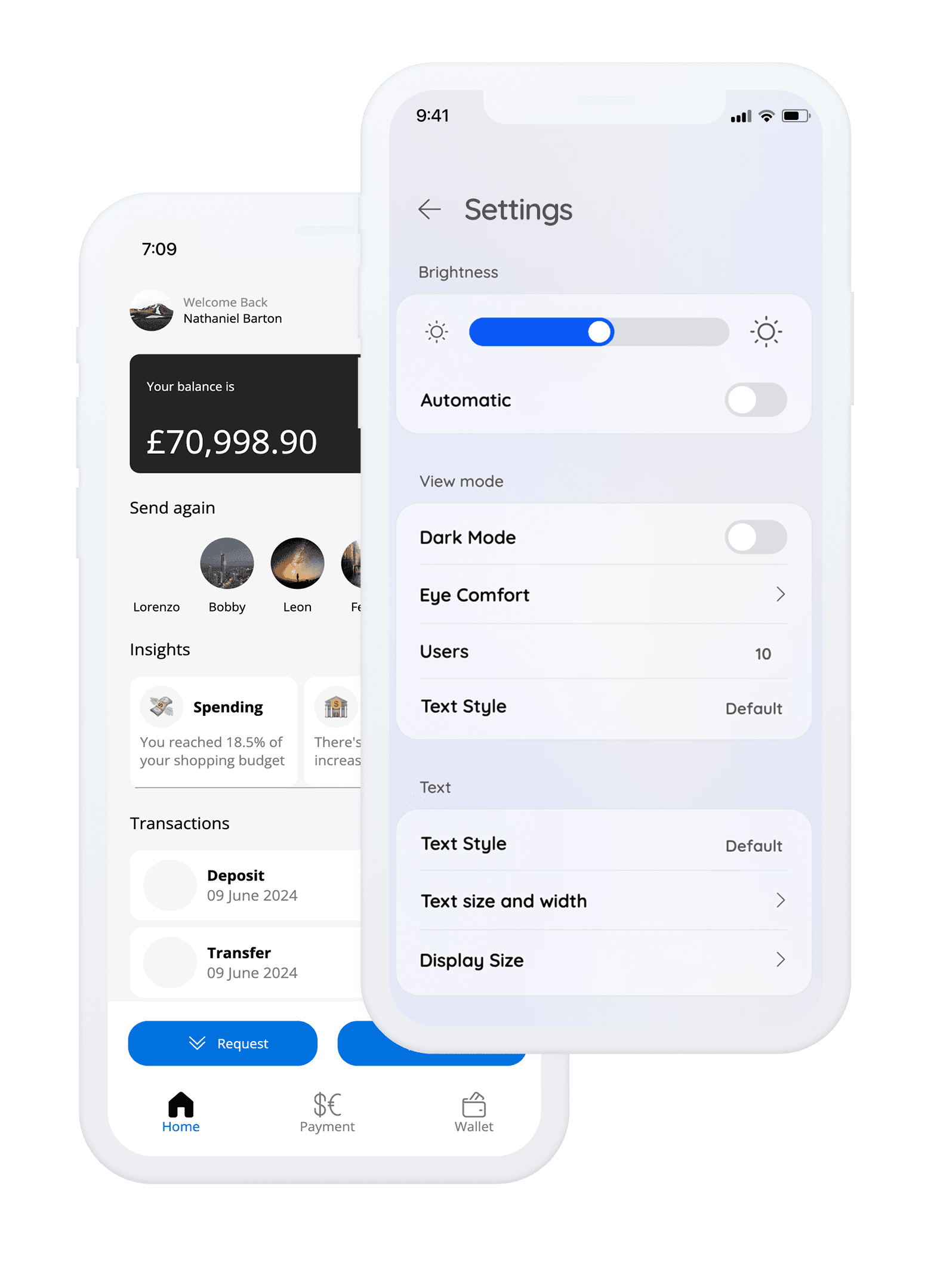
Your brand, at full strength, on both stores.
Because Avalonia owns every pixel, a colour, a corner radius or an animation curve lands the way the design team specified it, on both operating systems, without a per-platform theming API standing in the way.
A single style set covers iOS, Android and the desktop. Changing the design system is a commit rather than a sprint of platform-by-platform re-skinning, and the screenshots in the app store match the screenshots in the desktop release notes because they came out of the same renderer.
The built-in theme is Fluent. For a Material look on Android, Material.Avalonia is the community theme the docs list, and because a theme is a style resource it applies to the iOS and desktop builds in the same commit.
Native to the phone
Drawing your own controls doesn’t mean ignoring the device.
A phone has opinions about notches, back gestures, deep links and what belongs in front of what. Avalonia gives you the hooks for all of them, on both operating systems, from the same code.
Where native views stop
Worth knowing before you design around one: an embedded native view always renders on top of the Avalonia surface, takes no transforms and no transparency, and can’t have Avalonia controls overlaid on it. Plan the screen so nothing needs to float above it.
One app, three Apple targets
The same project builds for iOS, for iPadOS, and for macOS through Mac Catalyst on net10.0-maccatalyst, which is a second route onto the Mac alongside the native desktop backend.
Scene-based lifecycle
Avalonia 12 adopts the scene-based lifecycle on iOS, which is what modern iPadOS multitasking and state restoration are built on, rather than the legacy single-window assumptions.
Setup, provisioning and store submission are documented for both platforms.
Android and iOS guidesGetting it shipped
The build and store path is the .NET one.
Avalonia mobile builds are ordinary .NET mobile builds, so the toolchain, the signing and the store submission are the ones Microsoft documents rather than ones we invented.
ipa, apk and aab
Standard output for both stores, produced by the same .NET mobile tooling that builds your desktop app.
Simulators and devices
Run and debug on a simulator or a physical device from Rider, Visual Studio or VS Code, with breakpoints through async code.
VoiceOver and TalkBack read your app
Avalonia exposes its controls through UIAccessibility on iOS and AccessibilityNodeInfo on Android, so the screen reader on each platform sees real controls, from the same AutomationProperties you set for the desktop build.
Follows the .NET lifecycle
Mobile OS support tracks the .NET MAUI support policy, so the versions we keep working are the versions Microsoft keeps working.
Worth knowing up front
Mobile is the youngest of Avalonia’s targets. The rendering engine and tooling are the same ones desktop already ships with, but the third-party control ecosystem is deeper on desktop than it is on phones.
Avalonia is MIT licensed on every target, phones included. The mobile templates install with the same SDK as the desktop ones, so trying it costs an afternoon rather than a decision.
Start a mobile projectEvery target
Phones are two targets of six.
A team that builds a desktop application in Avalonia already has most of a mobile application, and the reverse holds too. The shared part is the part you wrote.
Windows
Direct Win32 calls, x64 and ARM64.
macOS
A native backend, universal binaries.
Linux
X11, Wayland, and bare framebuffer.
iOS
The same views, drawn on Metal.
You’re here
Android
ARM64, ARM32 and x64 devices.
You’re here
WebAssembly
Static files, no server component.
Add the phone build your design system already supports.
The mobile templates install with the same .NET SDK as the desktop ones. Build the iOS and Android heads from your existing solution and see how much of it you already had.